Your TV,
simplified
ZenMote turns your phone into a beautifully minimal TV remote. No account, no cloud — just your local network.
See it in action
Pair once, control everything.
Getting started
Same network
Make sure your phone and Apple TV are on the same Wi-Fi network.
Open ZenMote
Nearby devices appear automatically — no manual IP entry required.
Tap to pair
Select your TV and enter the 4-digit PIN shown on screen.
You're in
ZenMote remembers your TV — no PIN needed next time.
Playback & volume
Volume
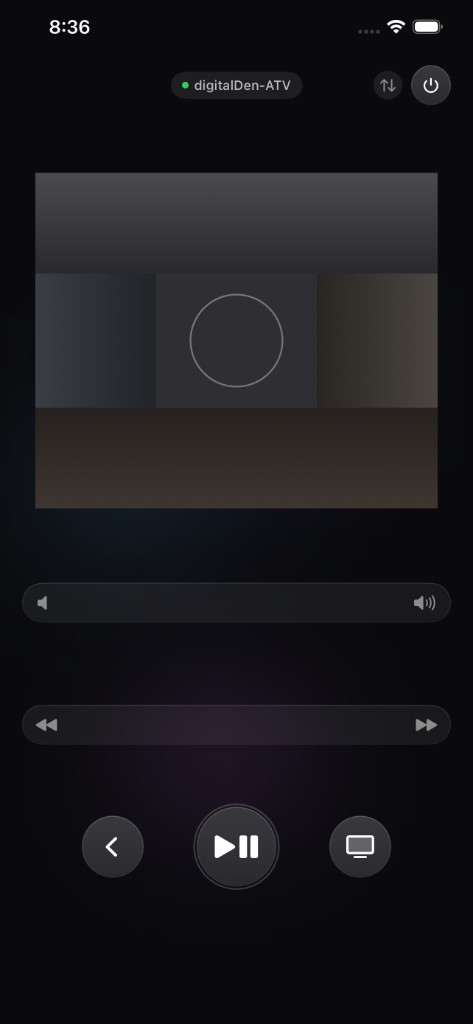
Drag the volume slider left or right to lower or raise the level.
Scrubbing
Tap the media timeline, then drag to rewind or fast-forward through what's playing.
D-pad skip & scrub
Press and hold the left or right edge to scrub backward or forward. A quick tap jumps exactly 10 seconds.
Common questions
ZenMote works exclusively with Apple TV (4th generation or later). It does not work with Samsung, LG, Sony, Roku, or other smart TVs.
Make sure both devices are on the same Wi-Fi network. Toggle Wi-Fi off and on on your iPhone, then reopen ZenMote.
Yes. ZenMote needs local network access to discover and talk to your TV. No data ever leaves your home network.
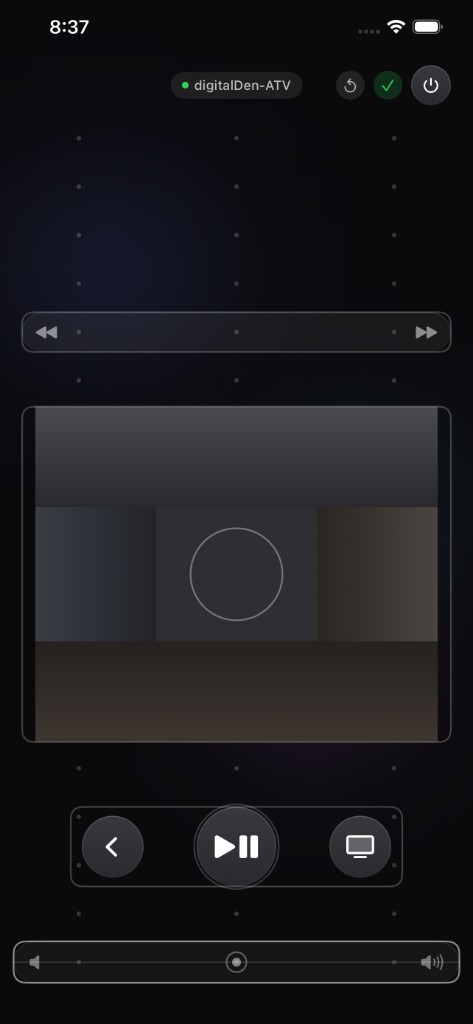
Tap the reorder icon to the left of the power button to enter edit mode, then drag controls into your preferred layout.
No. ZenMote works entirely over your local Wi-Fi — no account, no cloud, no internet required.
On your Apple TV, go to Settings → Remotes and Devices, remove ZenMote, then re-pair from the app.